
Changelog
What's New?
A collection of new features we've just launched in Lessonspace!
Live Updating Whiteboard Text

The text tool on whiteboards will now update for all participants as it changes.
You can see this working in the demo above as the person on the left is typing, the person on the right sees the updates in real time.
Space Tags

You can now give tags to Spaces. Tags are made up of a key and a value, both can be whatever you want e.g. "Subject - Math" or "Type - Test Prep" where "Subject" & "Type" are keys and "Math" & "Test Prep" are values.
Tags can help you keep your Spaces organised and easy to find. You can filter Spaces by tag using the filter options, or by clicking a tag on a Space.
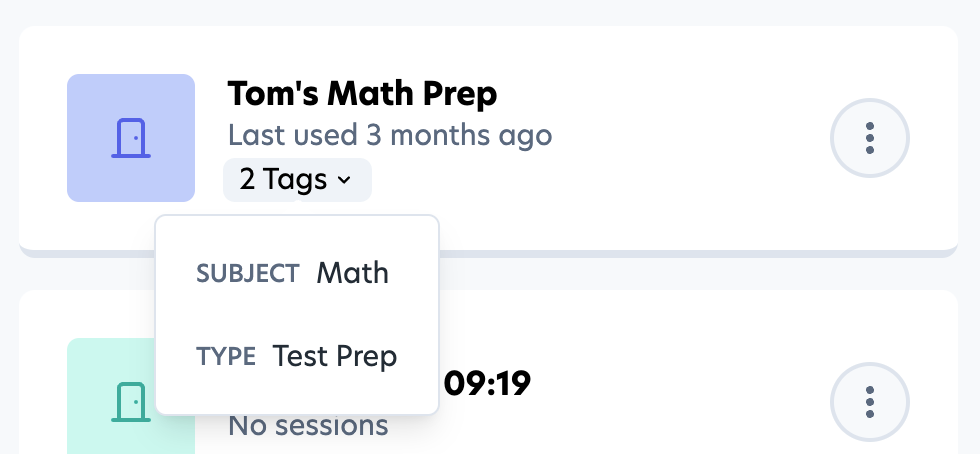
Tags are also a powerful tool when using the Lessonspace API. With tags you can add useful metadata on Spaces which you can use to find or filter Spaces programmatically.
More Languages Now Available
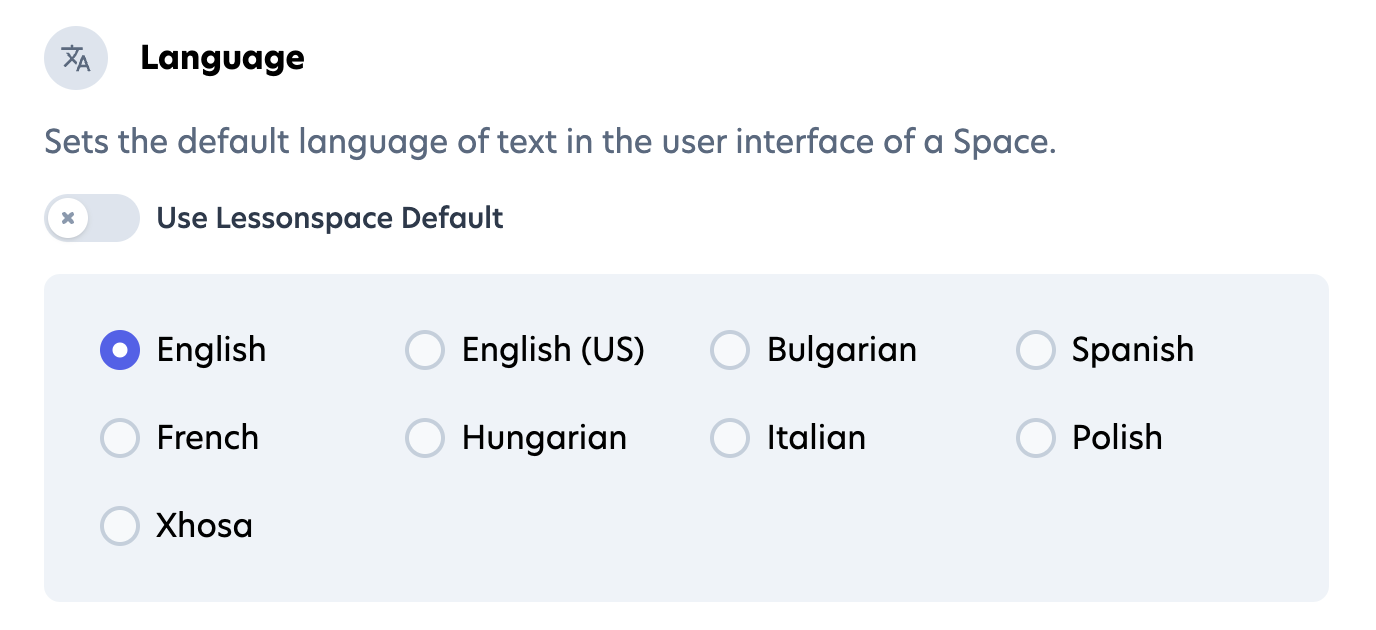
Spaces are now available in some new languages. Our available languages have expanded to include English (US), Spanish, Hungarian, Bulgarian & Xhosa.
In addition, some parts of the Space which were not properly translated now fully support language switching.
Improved Tab Management
We have rebuilt the Tab Bar to be much more user-friendly and added some much-requested features.
Tab Dropdown List

 The most exciting addition is the new Tab Dropdown List. On the right-hand side of the Tab Bar you'll see a new button. Clicking this will open the Tab Dropdown List, where you can see all your tabs in a vertically-scrolling list. Tabs can be edited and reordered from this list, just like the tab Tab Bar.
Tab Search
 Do you have lots of tabs? Need to find one quickly? Use the new search function at the top of the Tab Dropdown List.
Restore Deleted Tabs
 You can now access any tabs you've deleted during the course of a session in a space via the Deleted Items menu in the new Tab Dropdown List.
Tab Context Menu & Status Icons
 We've updated the look of the right-click menu (context menu) on Tabs to be cleaner and added some icons to make it easier to find what you're looking for.
In addition, setting a tab to be un-deleteable or un-editable now shows a status icon on the tab so you can easily see at a glance if a tab is locked.
Logout Directly from Space
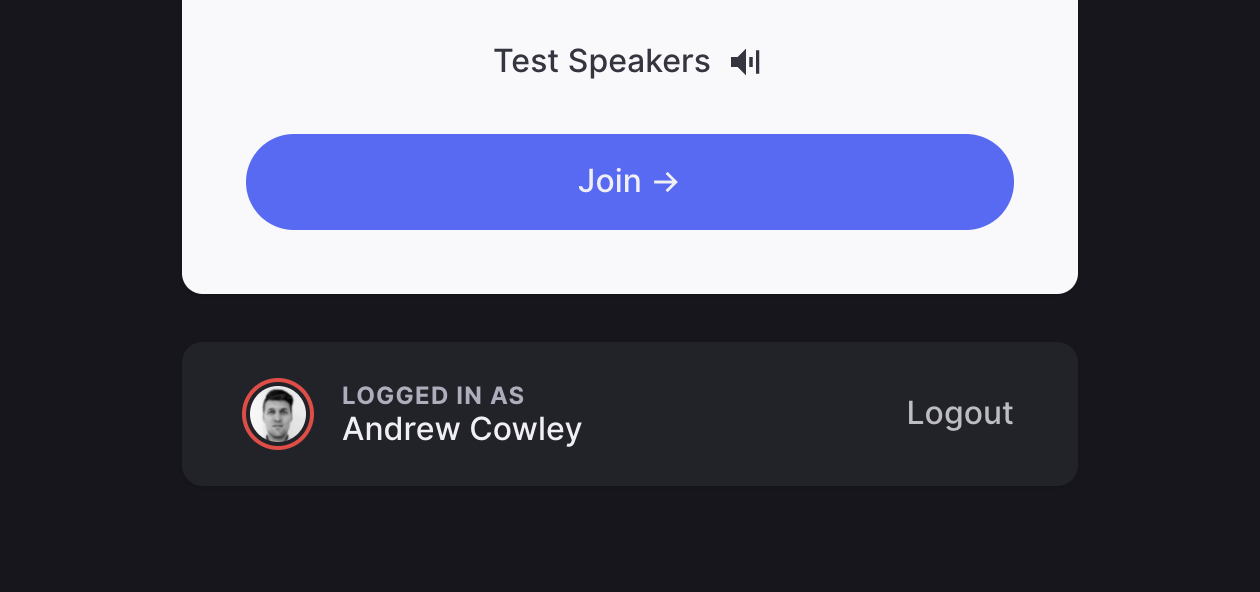 A minor update to the Lobby: If you're logged into Lessonspace you'll see a new section on the Lobby showing who you are currently logged in as and the option to logout.
New PDF Upload Methods

Importing a PDF is now much easier with an improved upload flow. You can now select which pages from a PDF you'd like to upload, as well as choose if you'd like to:
- import those pages onto a single vertical-scrolling whiteboard, or
- load each page onto its own separate whiteboard tab, or
- add each page onto your current whiteboard tab (if you're currently on a whiteboard tab)
Assign Spaces to Students

Admins and Teachers can now assign Spaces to Students. This allows you to place a Space on a Student's dashboard without them needing to join the Space before showing up.
Video Background Blur
You can now blur your video background for a bit of extra privacy (or if you've got a messy room). You can find the toggle in the Comms Dock Settings, just underneath Advanced Noise Cancelling.
More Tools for Documents (+ Image Uploads!)
Documents now include more options in the toolbar, like font style, lists, and colours. You can also now upload images to a Document.
Resource Library
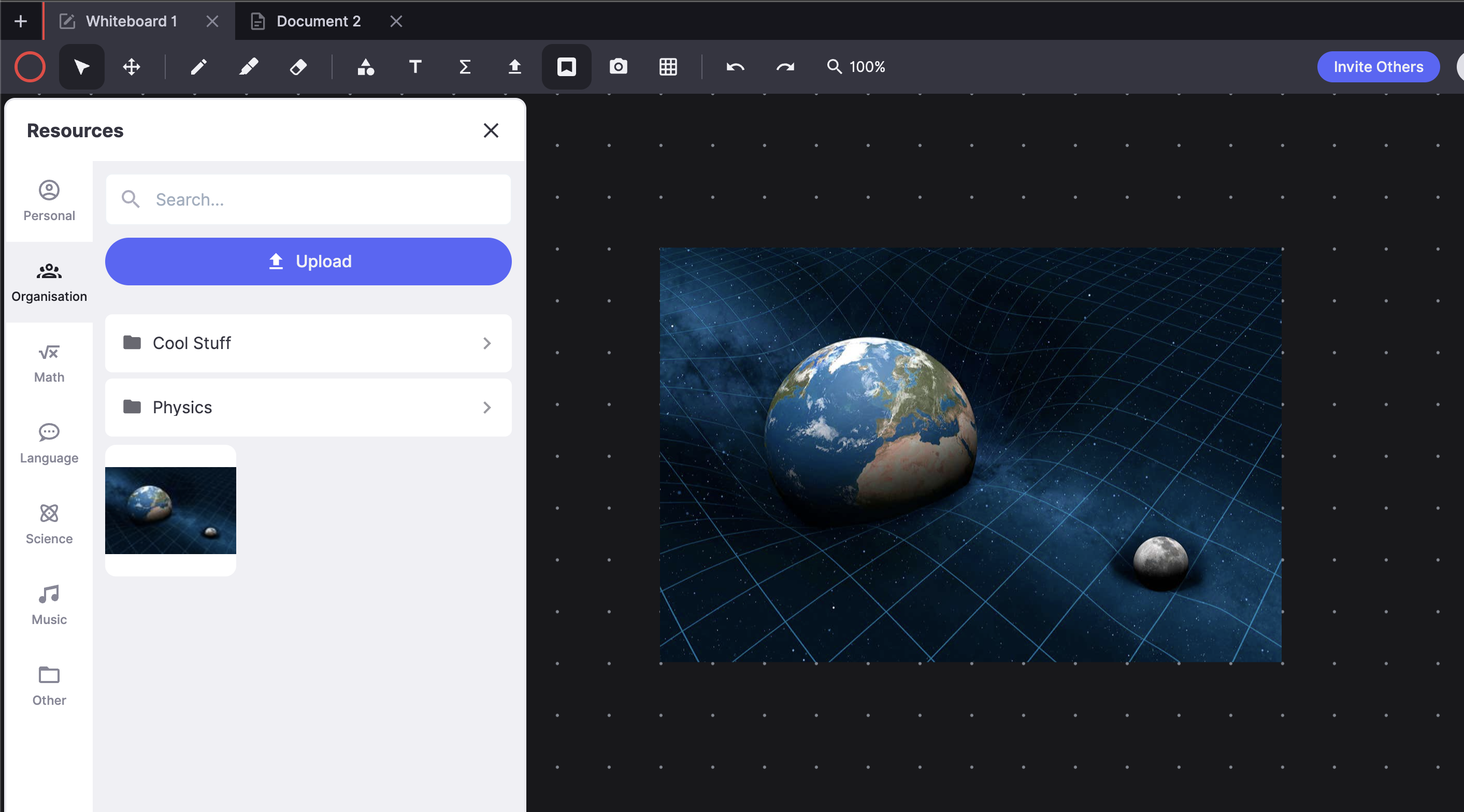
The much-anticipated Resource Library is now available for everyone! Organisations and individuals can now upload their own resources to be available directly from the Resource Drawer in their Spaces.
Recording Playback: Faster, Smoother, Prettier

Session recording playback has been completely rebuilt from the ground up. Initial loading, jumping and scrubbing along the timeline should all be markedly faster and the playback environment is now themed according to your organisation's branding settings.